If your iPhone 18 Pro Max GPS is not working correctly, showing the wrong location, or jumping between streets while navigating, start by checking Location Services, enabling Precise Location, and testing your phone outdoors. You should also make sure your date and time settings are correct, check your internet connection, and install the latest available iOS update.
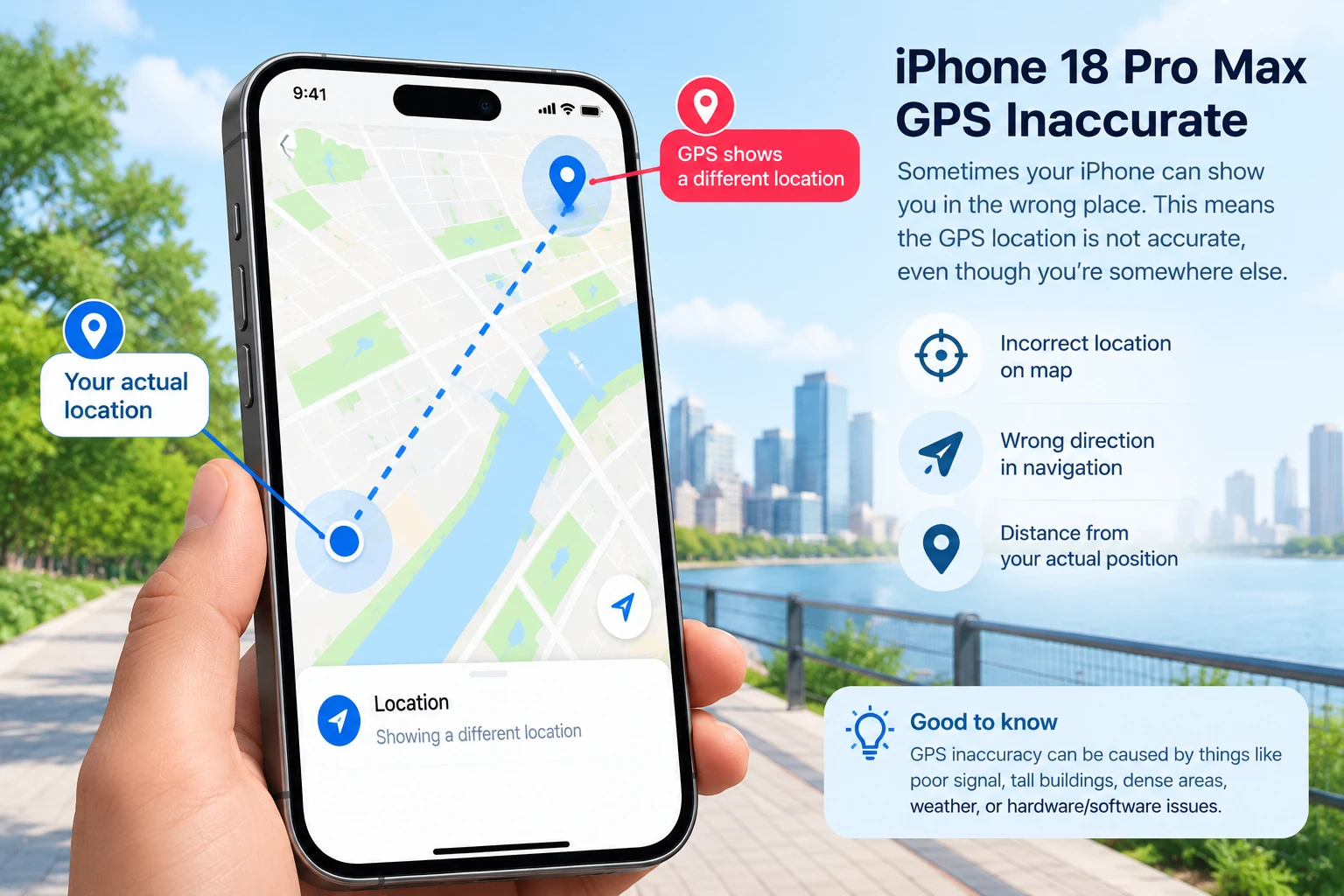
GPS problems do not always indicate faulty hardware. Tall buildings, weak satellite reception, incorrect app permissions, software glitches, and map-data errors can all affect location accuracy. If the same problem occurs in Apple Maps, Google Maps, and Waze, further troubleshooting may be necessary.
This guide explains the common symptoms, likely causes, and practical ways to troubleshoot iPhone 18 Pro Max GPS problems.
How to Fix iPhone 18 Pro Max GPS Problems
Try these solutions in order, checking whether your location becomes more accurate after each step.
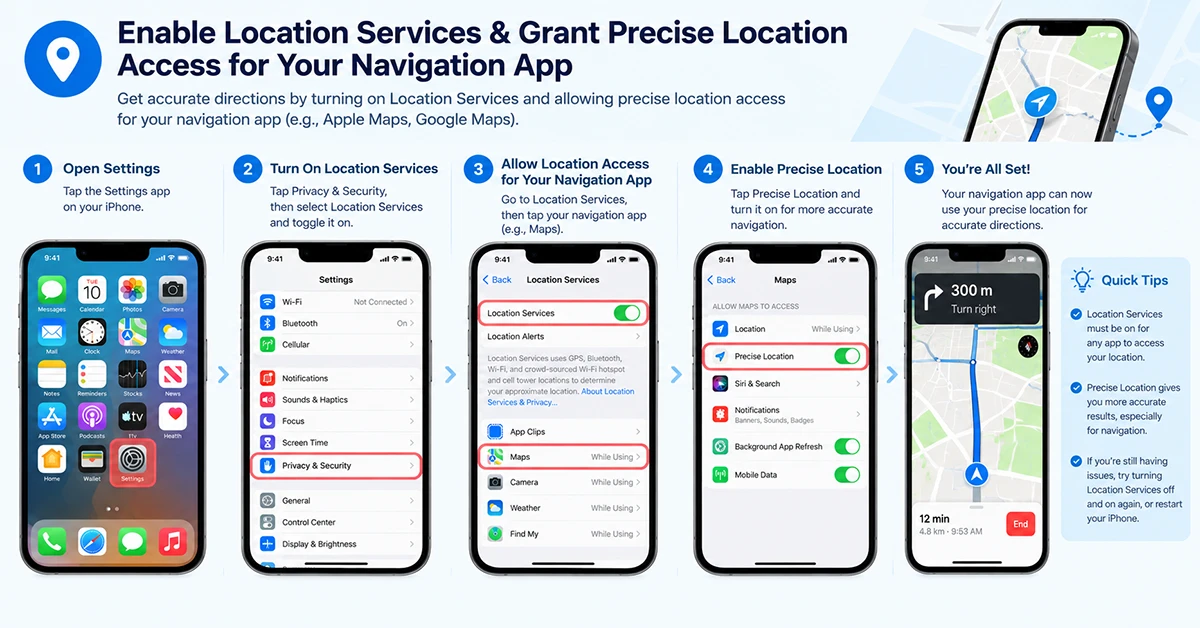
1. Turn On Location Services and Precise Location
Incorrect location permissions are one of the first things to check when your iPhone cannot determine your position accurately.
- Open Settings on your iPhone.
- Go to Privacy & Security > Location Services.
- Make sure Location Services is turned on.
- Select Apple Maps, Google Maps, or the affected navigation app.
- Set location access to While Using the App or another appropriate option.
- Turn on Precise Location if the app needs your exact position.
- Repeat these steps for every navigation app you use.
Without Precise Location, an app may receive only an approximate location. If the problem affects just one app, checking its individual permissions is a useful first step.
2. Test GPS Outdoors
GPS accuracy depends partly on how well your phone can receive signals from satellites. Buildings, bridges, trees, and indoor environments can interfere with reception.
Take your iPhone outdoors to an open area with a clear view of the sky. Open Apple Maps or Google Maps, tap the current-location button, and wait briefly for the location marker to stabilize.
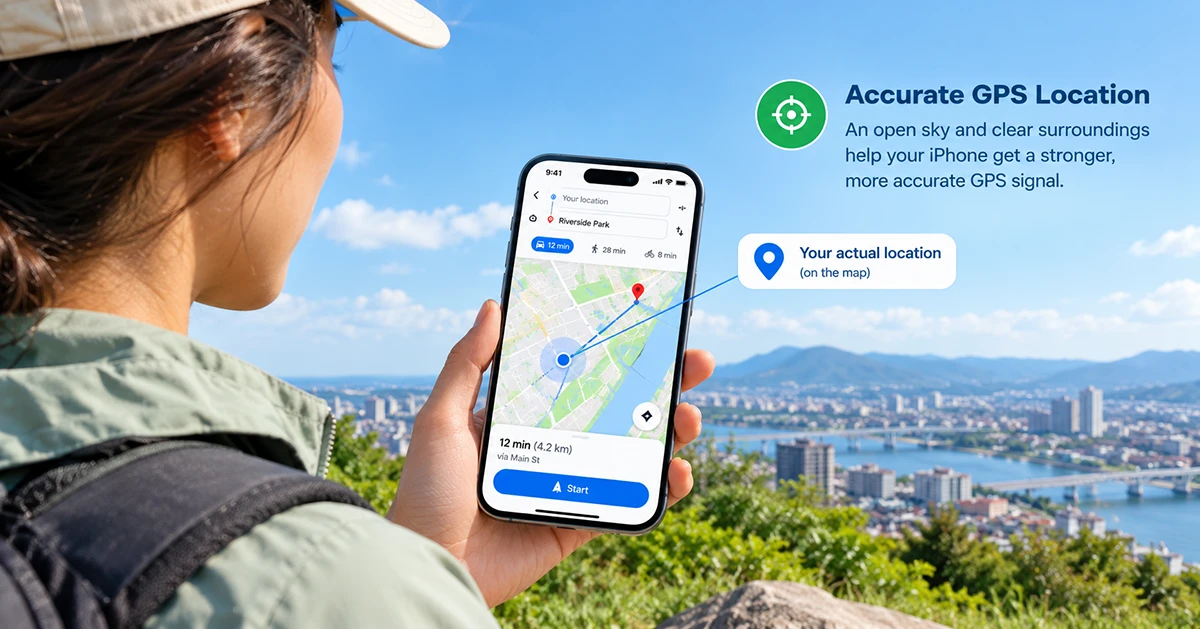
A larger blue circle around the location marker indicates greater uncertainty about your position. A smaller circle indicates greater confidence.
If GPS works outdoors but becomes inaccurate inside a building or between tall buildings, the issue may be related to signal obstruction rather than faulty hardware.
3. Check Wi-Fi, Cellular Data, and Airplane Mode
Your iPhone uses more than satellite signals to determine your location. Location Services can also use Wi-Fi, cellular networks, and Bluetooth.
Try the following:
- Turn off Airplane Mode.
- Enable Wi-Fi, even if you are not connected to a particular network.
- Check that cellular data is available.
- Move to an area with better reception.
- Reopen your navigation app and check your location again.
- An internet connection also helps navigation apps retrieve map data and route information. However, a missing internet connection and a weak GPS signal are not the same
- problem.
If your phone has no cellular service, check the cellular connection separately rather than assuming GPS hardware has failed.
4. Set Date and Time Automatically
Incorrect date, time, or time-zone settings can interfere with location-related functions.
To check them:
- Open Settings.
- Select General > Date & Time.
- Enable Set Automatically, if available.
- Confirm that the displayed time and time zone are correct.
After making the change, reopen your navigation app and test the location again.
5. Update iOS and Your Navigation Apps
Software updates can fix bugs affecting system services, app compatibility, and location reporting.
To check for an iOS update:
- Open Settings > General > Software Update.
- Check whether an update is available.
- Back up important data and install the update when appropriate.
You should also check the App Store for updates to Apple Maps-related system components where applicable, Google Maps, Waze, or other navigation apps.
Read the release notes when possible. Do not assume that every iOS update contains a GPS fix unless Apple or the developer confirms it.
6. Reset Location and Privacy Settings
If the simpler fixes do not work, resetting Location & Privacy may help resolve an incorrect permission configuration.
Before proceeding, understand that this resets location and privacy permissions for apps, so you may need to grant access again.
- Open Settings.
- Select General.
- Tap Transfer or Reset iPhone.
- Select Reset.
- Choose Reset Location & Privacy.
- Confirm the reset and reopen your navigation app.
- The exact wording may vary slightly by software version.
This action is different from erasing your iPhone 18 Pro max or performing a factory reset. Try it before considering more disruptive troubleshooting, and check whether the problem persists afterward.
7. Contact Apple Support if GPS Still Fails
If your iPhone 18 Pro Max repeatedly shows the wrong location outdoors, freezes during navigation, or fails to update its position across multiple apps, please read the iPhone quick start guide or contact Apple Support.
Before arranging service, record the following details:
- Whether the problem occurs outdoors and indoors.
- Which navigation apps are affected.
- Whether the location marker freezes, drifts, or jumps to another street.
- Which iOS version is installed.
- Whether the issue began after an update, drop, or other incident.
- Which troubleshooting steps you have already tried.
These details can help support staff investigate the problem more efficiently.
Avoid assuming the GPS receiver is damaged until software, permissions, and reception have been checked. If a hardware fault is suspected, Apple or an authorized service provider can advise you on appropriate diagnostics and repair options.
Common iPhone 18 Pro Max GPS Problems and Their Causes
Different symptoms can point toward different causes. Use this table as a starting point rather than a definitive diagnosis.
|
GPS Problem |
Common Symptoms |
Possible Causes |
|---|---|---|
|
Inaccurate GPS Location |
The iPhone shows the wrong location or places the user on a nearby street. |
Weak GPS signals, location settings issues, or temporary software glitches. |
|
GPS Signal Keeps Dropping |
Navigation stops updating or the location disappears intermittently. |
Obstructed satellite signals, software bugs, or temporary connectivity issues. |
|
Apple Maps Shows the Wrong Route |
Directions lead to incorrect roads or fail to match the user’s actual position. |
Outdated map data, inaccurate location readings, or routing errors. |
|
Google Maps GPS Not Working |
Google Maps cannot determine the current location or displays an incorrect position. |
Disabled location permissions, imprecise location settings, or app glitches. |
|
GPS Not Working Indoors |
Location accuracy decreases inside buildings, parking garages, or tunnels. |
Walls, roofs, and other structures blocking satellite signals. |
|
GPS Drains the Battery Quickly |
Battery usage increases while using navigation apps. |
Continuous location tracking, high screen brightness, or background app activity. |
|
GPS Location Is Slow to Update |
The location marker takes a long time to move or refresh. |
Weak satellite reception, temporary system delays, or app performance issues. |
|
GPS Drifts While Driving |
The location marker jumps between roads or moves inaccurately. |
Weak GPS reception, signal reflections near tall buildings, or sensor inaccuracies. |
|
GPS Stops Working After an iOS Update |
Location services behave unexpectedly after installing an update. |
Software bugs, changed privacy settings, or temporary system configuration issues. |
|
GPS Fails in Certain Apps |
GPS works in one app but not in another. |
App-specific permission restrictions, outdated apps, or software compatibility problems. |
|
GPS Works Only With Wi-Fi or Cellular Data |
Location accuracy improves when Wi-Fi or mobile data is enabled. |
Wi-Fi and cellular positioning may be supplementing weak GPS signals. |
|
GPS Problems After a Drop or Water Exposure |
Location accuracy worsens after physical damage or liquid exposure. |
Possible internal hardware damage that requires professional diagnosis. |
GPS accuracy can deteriorate near tall buildings, bridges, and trees because satellite signals may be blocked or reflected. Mapping software can also display incorrect roads or addresses even when the device’s GPS hardware is working correctly.
Frequently Asked Questions
Why is my iPhone 18 Pro Max GPS showing the wrong location?
Possible causes include disabled Precise Location, weak satellite reception, indoor use, incorrect settings, software problems, or inaccurate map data. Start by checking Location Services and testing the phone outdoors.
Why does my iPhone 18 Pro Max GPS keep jumping?
A jumping location marker can result from unstable positioning, signal obstruction, or delayed location updates. Test the phone in an open area and compare several navigation apps before deciding whether the problem is app-specific or system-wide.
Why does GPS work in Apple Maps but not Google Maps?
The apps may have different permissions or app-specific problems. Check Google Maps’ Location Services permission, enable Precise Location, update the app, and restart it.
Does iPhone GPS work without cellular data?
GPS positioning can work without an active cellular data connection, although navigation apps may need an internet connection for online maps, traffic information, and route updates. Downloaded offline maps can help when supported by the app.
You may also like:
 How to Schedule Text Messages on Samsung S24 Ultra: A Step-by-Step Guide
 Fix Samsung Soundbar Remote Not Working in 3 Easy Steps
 How to Fix a Non-Working Volume Button on Apple TV Remote
 How to Reset Your Samsung S25: A Quick & Simple Guide
 iPhone 17 Not Charging? Here Are the Steps to Get It Working Again